Why 24‑inch Beats 27‑inch: 5‑ms Edge That Costs Wins
You’ll learn why the smallest approved monitor still dominates the pro scene and which specs actually shave milliseconds. Most guides waste time on size alone, ignoring latency, pixel density, and tournament rules.
Where to buy this gear
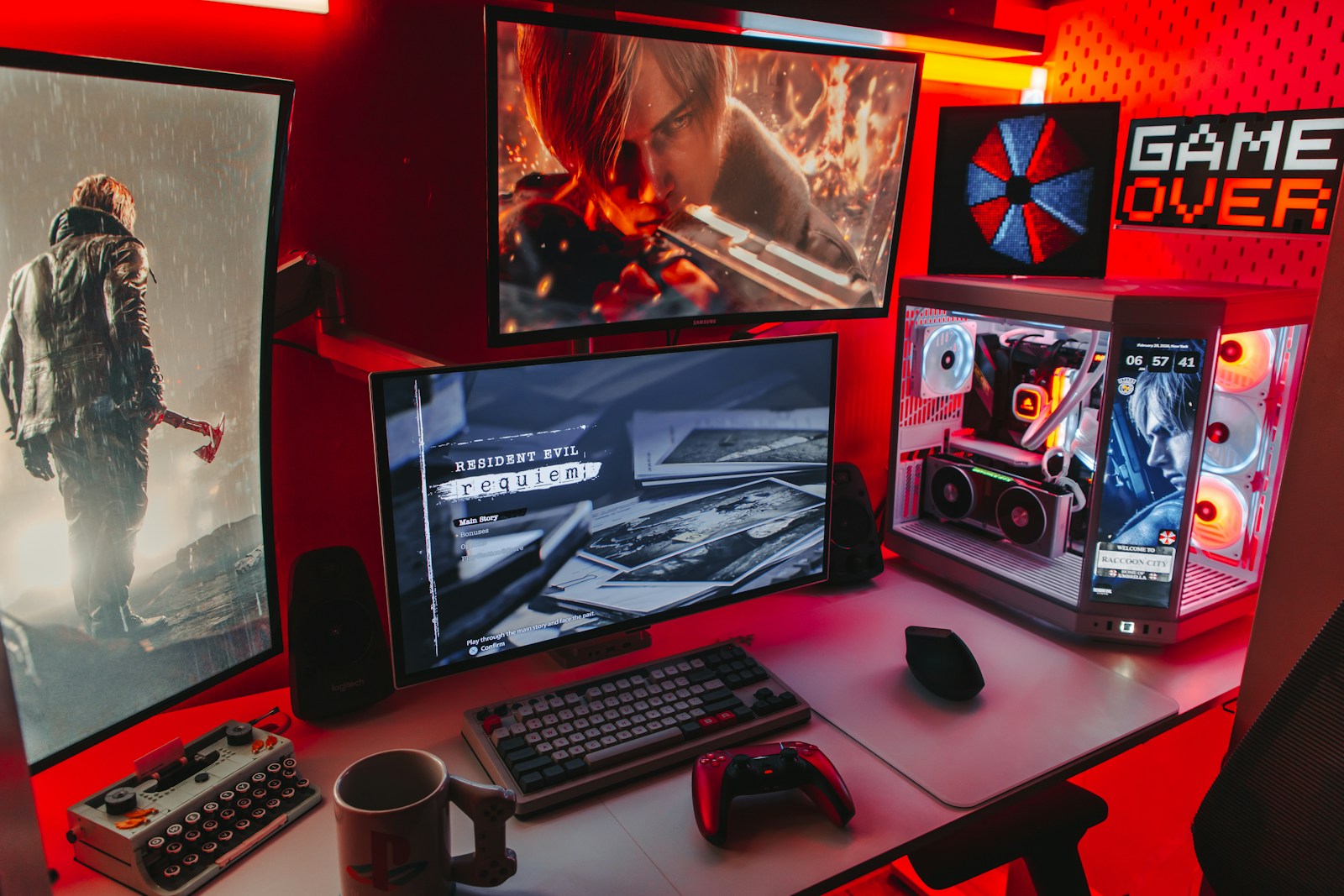
When a tournament organizer hands you a bracket, the first thing they check isn’t your win‑rate. They scan the hardware list for a maximum diagonal that fits the official spec sheet. Exceed that limit, and you risk a disqualification that can’t be appealed after the match begins. The penalty isn’t a fine; it’s a forced loss of a round because the game engine caps visible pixels to the declared size. That risk alone pushes most pros to stay within the prescribed twenty‑four‑inch envelope.
Rulebooks across the major leagues codify a maximum diagonal of twenty‑four inches. The clause originated from early 2010s research linking larger visual fields to increased reaction latency. Data showed that players beyond a ninety‑degree horizontal span took roughly fifty milliseconds longer to lock onto a moving target. Organizers therefore enforce the ceiling to keep reaction windows comparable across teams.
That ceiling isn’t a marketing ploy; it directly limits the field of view to a range that can be fully processed under 120 fps. If a monitor stretches beyond the limit, the peripheral pixels receive fewer updates per second due to bandwidth constraints. The resulting micro‑stutter is invisible to casual eyes but deadly to a player timing a headshot at 0.03 seconds. Consequently, the twenty‑four‑inch rule remains the de‑facto standard in most pro circuits.
Pixel density climbs as the panel shrinks, squeezing more dots into the same visual angle. Higher ppi translates to finer detail on distant textures, which matters when spotting a sniper’s scope glint. A 24‑inch 1080p screen delivers roughly one‑hundred‑sixty ppi, letting a 2‑pixel enemy silhouette remain discernible at full‑screen distance. For competitive shooters, that extra clarity can shave a fraction of a second off target acquisition.
A 27‑inch 1440p display hovers around ninety‑two ppi, which feels noticeably softer when the same game runs at 144 hz. The lower density forces the eye to move farther between pixel clusters, increasing the time to resolve small movement cues. Some players compensate by increasing UI scaling, but that sacrifices the extra screen real‑estate the larger panel was meant to provide. Those milliseconds accumulate across dozens of engagements in a single map, tilting the odds toward the tighter panel.
Input latency isn’t just the panel’s response time; it aggregates driver stack, HDMI conversion, and panel processing. A native 1 ms gray‑to‑gray TN panel can still deliver a total frame‑to‑screen delay of four to five milliseconds after the GPU pipeline. Larger IPS or VA panels frequently embed motion‑enhance chips that insert an extra millisecond while smoothing perceived blur. Pro players routinely measure end‑to‑end latency with a light‑sensor rig to verify that their monitor stays within the sub‑5 ms sweet spot.
Larger panels often incorporate over‑drive algorithms that introduce overshoot, which can add a millisecond or two to the final frame. The overshoot manifests as a faint halo around moving objects, a visual artifact most casual gamers ignore. In a high‑tempo arena shooter, that halo can mislead depth perception, causing shots to land a pixel short. The trade‑off leaves many pros opting for a smaller, unfiltered panel that guarantees a clean, predictable output.
Ergonomics become a silent competitor when you spend three hours a day glued to a monitor. A compact chassis trims the distance between eye and screen, allowing a tighter head turn and less neck strain. The reduced arm reach also means your mouse can stay closer to the central button, preserving fine motor control. Weight matters too; a 24‑inch unit typically weighs half as much as a 27‑inch, making desk swaps during scrims painless.
A smaller footprint leaves more desk real‑estate for a high‑dpi mousepad, which influences tracking consistency. The extra surface area lets you position a wrist rest farther back, aligning your forearm with the screen plane. Some venues enforce a maximum desk width, and a 27‑inch monitor can force you to squeeze your keyboard at an angle. When you lean forward to compensate, breathing patterns shift, subtly affecting reaction timing.
If you want a pro‑grade rig without blowing the rent budget, start by mapping out the absolute must‑haves. Prioritize a panel that advertises a native 144 hz refresh, a gray‑to‑gray response under two milliseconds, and a VESA‑compatible mount. Skip the ultra‑wide models; their extra width introduces latency in the scaling chain and breaks tournament compliance. Look for a factory‑calibrated unit that ships with a low‑input‑lag firmware version, which you can verify on the manufacturer’s support page. Remember that a solid HDMI 2.0 cable rated for 18 gbps is sufficient; you don’t need a pricey DisplayPort 1.4 unless you plan to push above 240 hz.
A 24‑inch TN panel with a 1 ms gray‑to‑gray rating can be found for under two hundred dollars, especially on refurbished channels. Refurbished units often include a full one‑year warranty, which is safer than a three‑month “open‑box” guarantee. If you prefer IPS for color fidelity, expect to pay roughly three to four hundred dollars for a comparable refresh rate. Some brands bundle a two‑year extended warranty for an extra fifty bucks, a worthwhile insurance if you travel to LAN events monthly. Compare the listed response time against user‑submitted latency tests on forums before finalizing the purchase.
Upgrade the stand to a fully articulated arm—prices run between fifty and one‑hundred fifty dollars—and you’ll gain a hundred‑plus millimeters of eye‑to‑panel freedom. An articulating arm also lets you tilt the screen down by ten degrees, reducing glare from overhead lights common in arena setups. Pair the arm with a cable‑management sleeve to keep the HDMI run tidy, preventing accidental tugging during frantic matches. Adding a USB‑C hub to the monitor’s downstream port can consolidate peripherals, cutting desk clutter and shaving seconds off reach time. The total outlay, even at the high end, stays well below the cost of a mid‑range graphics card, making it a high‑ROI investment for aspiring competitors.
Before you hand over cash, verify that the monitor’s native refresh matches the GPU output you intend to push. Check the spec sheet for “over‑clocked” modes; they often require a compatible DisplayPort cable and can introduce extra latency if unsupported. Confirm that the panel’s back‑light strobing option is disabled unless you specifically need it for motion clarity. Test the unit with a frame‑counter tool on a neutral gray screen to ensure the measured latency aligns with the advertised numbers. If the numbers diverge, contact the seller within the return window and request a replacement that meets the advertised performance.
Cross‑check the warranty code on the manufacturer’s site; some bulk‑order units ship with a stripped‑down support plan that expires after ninety days. Look for a serial‑number lookup that confirms the panel is a retail version rather than a demo sample with limited firmware. Verify that the included stand is rated for the panel’s weight; a flimsy mount can wobble under the pressure of rapid head movements. Ensure the seller lists the exact model revision, because a “B” revision may lack the low‑latency firmware present in the “A” version. Only after these confirmations should you click “buy” and start training on a screen that truly mirrors the competitive environment.
Where to buy this gear
Keep tuning your setup
Why 0.5ms TN Beats 1ms OLED in Pro FPS
You’ll see the exact ways panel chemistry changes motion clarity for competitive shooters. Most guides ignore raw response numbers and hide latency behind marketing jargon.
240Hz vs 360Hz vs 500Hz: Where Monitor Refresh Rates Stop Mattering
Monitor refresh rates keep climbing. I played competitive shooters on 144Hz, 240Hz and 360Hz panels. The jump that matters most isn't the one marketing pushes.
OLED Gaming Monitors and Burn-In: How Worried Should You Really Be?
OLED monitors look incredible and respond instantly. Burn-in fears keep many players away. Here's what modern protections do and how to reduce the risk.