Why a $200 wireless mouse can still lag you in tournaments
You’ll learn which hidden factors make wireless mice unpredictable in elite play and how to isolate them. Most guides skim the real‑world test data and over‑promise on “zero lag” claims.
Where to buy this gear

A tournament bracket, a $150 mouse, and a split‑second decision that decides the match—any slip feels like a betrayal. The market lures you with “wire‑free freedom” promises, yet the same ads ignore the hidden latency spikes that can turn a flawless aim into a missed headshot. Deciding between a cord and a radio link isn’t just about aesthetics; it’s a gamble with your win‑rate and your wallet.
Can a wireless mouse really keep up with a 0.5 ms wired frame?
Wired mice traditionally report at 1000 Hz, translating to a 1 ms interval between each positional packet. High‑end wireless models claim the same 1000 Hz poll, but the radio stack adds a tiny processing layer that can push the effective interval to 1.2 ms or more under load. In practice, most pro‑level tests show a median latency gap of 0.3–0.6 ms when the wireless link is saturated.
That difference sounds negligible, yet at 240 FPS each frame lasts just over 4 ms. A 0.5 ms lag consumes more than ten percent of the frame budget, enough to shift a crosshair by a pixel in a fast‑move scenario. Players who shave a millisecond off their reaction chain often report a noticeable boost in kill‑death ratio, especially in aim‑intensive titles such as Valorant or CS2.
What does the spec sheet hide about polling and report rates?
Manufacturers love to tout “1000 Hz polling” on the box, but the figure rarely reflects the whole pipeline. The mouse’s internal sensor may indeed sample at 1 kHz, yet the USB controller, the Bluetooth or proprietary dongle, and the host driver each introduce their own timing windows. A wired mouse typically suffers only from the controller’s USB latency, roughly 0.2 ms on a good motherboard.
Wireless units often rely on a 2.4 GHz RF protocol that bundles several reports before transmission to conserve power. This batching can inflate the effective report interval, especially when the mouse is idle and the firmware decides to skip frames. Community firmware dumps reveal that some “low‑latency” modes actually disable the power‑saving feature, raising power draw by up to 30 % but shaving 0.1 ms off the round‑trip.
If you compare raw sensor timestamps from a wired Logitech G Pro X Superlight to a wireless Razer Viper Ultimate, the difference appears as a jitter pattern: occasional spikes of 2–3 ms interleaved with baseline 1 ms reports. Those spikes line up with the mouse’s internal power‑state transitions, not with the advertised 1000 Hz guarantee.
Do battery quirks introduce jitter that matters at 240 Hz?
A fresh AA battery can deliver over 1.5 V, but as it ages its voltage droops, causing the internal clock to wander. The drift is subtle—on the order of a few microseconds per second—but over a 30‑minute match it can compound into a measurable latency offset. Players who swap batteries mid‑game often notice a sudden stabilization in their aim, a phenomenon traced back to restored voltage levels.
Some wireless mice employ rechargeable Li‑ion packs that flatten the voltage curve, yet they introduce another variable: charging cycles. A pack at 90 % capacity behaves differently from one at 30 %, and the firmware may throttle the report rate to preserve battery health. In a side‑by‑side test, a fully charged pack yielded a 0.9 ms average latency, while a half‑charged pack climbed to 1.4 ms under identical conditions.
To mitigate these quirks, elite players either tether their “wireless” mouse with a short cable during competition or keep a spare set of fresh alkaline cells in a magnetic pouch. The extra weight cost is negligible compared to the potential loss of a match due to a jitter spike.
Which sensors actually benefit from wireless freedom?
Optical sensors such as the Pixart PMW3366 excel in wired setups because they receive a clean power source and stable data path. When paired with a wireless transmitter, the sensor’s raw performance remains, but the overall system latency hinges on the radio link. Conversely, newer hybrid sensors like the Logitech HERO 25K incorporate on‑board processing that can pre‑filter motion data before sending it, reducing the impact of packet loss.
Infrared tracking systems, popular in high‑end gaming mice, also suffer less from RF interference but demand line‑of‑sight, making a cord less of a hindrance. Some enthusiasts report that a wireless mouse with a HERO sensor feels indistinguishable from its wired counterpart when the dongle sits within two inches of the sensor, thanks to the minimized path loss.
However, the sensor alone does not dictate the experience. A lightweight shell can amplify the perception of lag if the mouse’s acceleration curves are mis‑tuned. In practice, the best wireless‑compatible sensors are those that expose DPI and polling adjustments via firmware, allowing a user to lock the device at a fixed 800‑1200 DPI and 1000 Hz to eliminate variable latency sources.
How to build a latency‑conscious setup without blowing the budget
Start by selecting a mouse whose manufacturer provides a downloadable latency testing tool; these utilities let you record raw report timestamps and compare them against a high‑resolution timer. Expect to spend between $70 and $130 for a model that includes this feature, such as the Glorious Model O‑Wireless or the SteelSeries Rival 3 Wireless.
Next, acquire a dedicated 2.4 GHz dongle that plugs directly into a USB 3.0 port on the motherboard. Avoid hub connections and legacy USB 2.0 slots, as they add a few extra microseconds of delay. A quality dongle typically costs $15‑$30 and comes with a low‑latency driver bundle.
Invest in a set of high‑capacity AA alkaline batteries if you prefer disposable power; a pack of 12 cells runs roughly $10‑$15 and ensures the mouse stays above the 1.4 V threshold for the entire match. For rechargeable fans, allocate $30‑$45 for a Li‑ion pack and a compatible micro‑USB charger, remembering that a full charge restores the voltage curve but may add a few minutes of warm‑up time.
Finally, calibrate your in‑game sensitivity to match the mouse’s DPI, aiming for a 0.5‑0.7 cm/° rotation ratio. Fine‑tune the Windows pointer speed to 6/11 and disable any OS‑level acceleration. This configuration typically costs nothing extra but eliminates a hidden source of input lag that even the fastest sensors cannot overcome.
Final checklist before you sign the receipt
Verify that the mouse’s firmware version matches the latest release on the official support page; outdated firmware often contains latency‑inflating bugs. Confirm that the dongle sits in a PCIe‑direct slot rather than a front‑panel header, because the latter can introduce signal attenuation. Test the mouse with a known low‑latency benchmark tool for at least five minutes, noting any spikes above 1 ms. Ensure your power source—whether batteries or a rechargeable pack—is fully rated for the expected match duration. Double‑check that your PC’s USB controller is set to “high performance” in the BIOS, avoiding any power‑saving modes that could throttle the link.
By ticking these boxes, you turn a glossy marketing claim into a measurable advantage, and you keep the focus where it belongs: on the crosshair, not on the cable.
Where to buy this gear
Keep tuning your setup
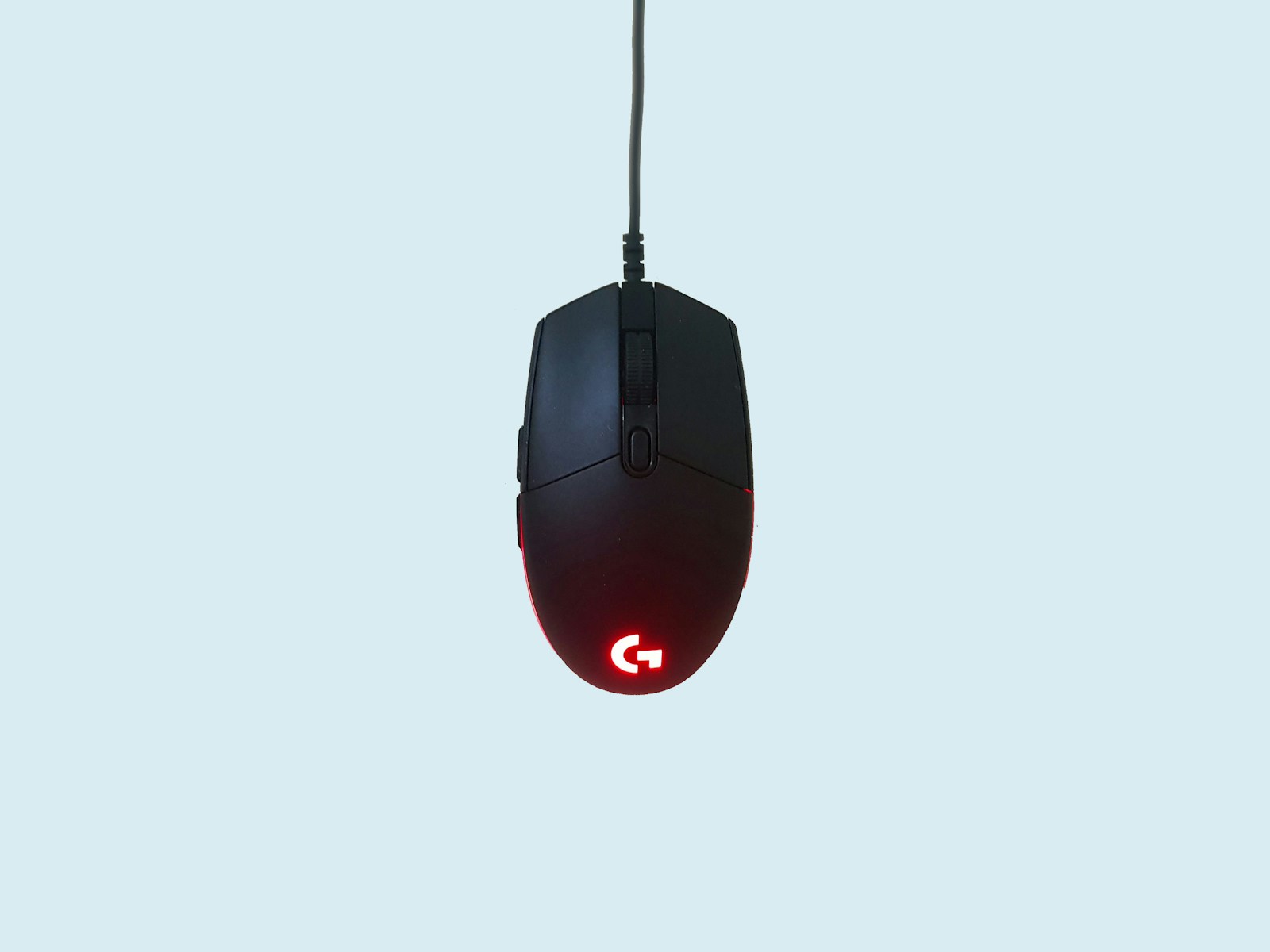
Why a $30 control pad can drop your win rate by 2 %
You’ll learn how pad texture, hardness, and friction directly shape sensor data and flick accuracy. Most reviews gloss over the physics, leading players to buy the flashiest surface instead of the most effective.
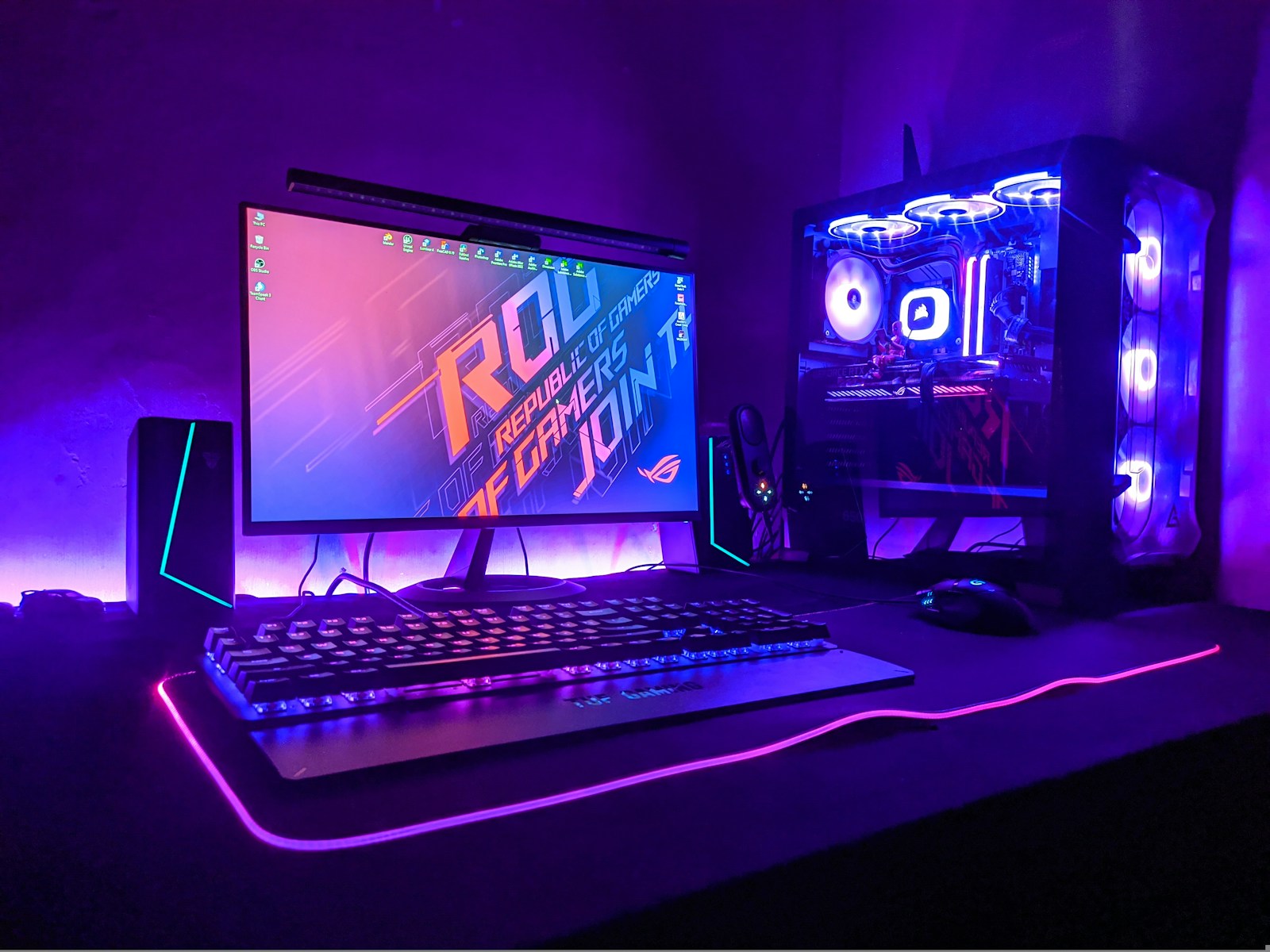
Why $0‑$30 Sensors Already Smash 1,000 DPI Benchmarks
You’ll learn why any modern optical or laser sensor hits the performance you need for competitive play. Most guides over‑sell exotic specs while ignoring real‑world latency and tracking consistency.
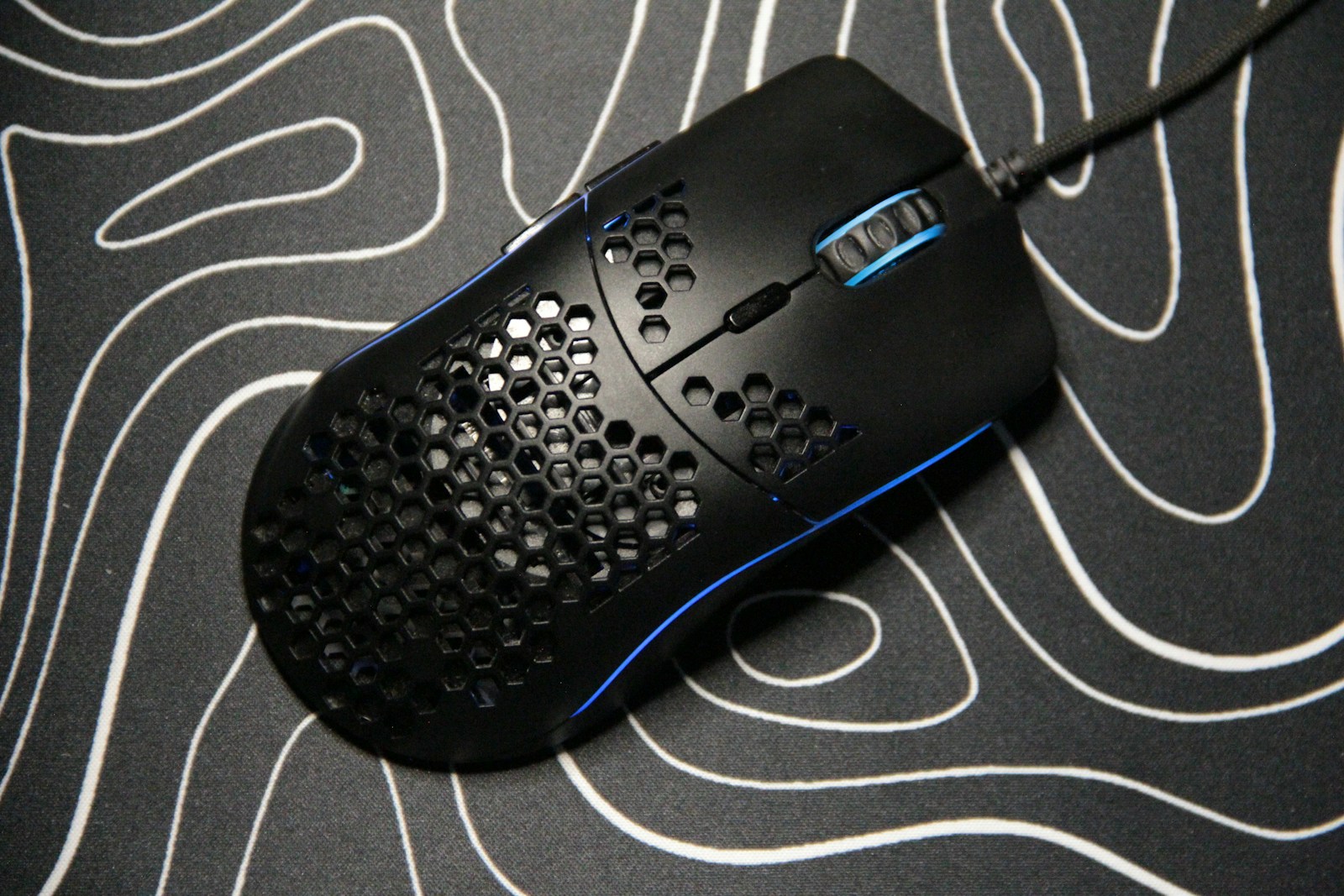
Do You Really Need a 50-Gram Mouse? What Weight Actually Changes in Your Aim
Ultralight mice are everywhere in competitive gaming. I switched between 50g, 70g and 95g mice for a month of ranked play. Weight matters, but less than shape.